

What is a Plugin?
A plugin owns one or more message types. It tells the UI Kit:- How to render the message as a bubble in the message list
- What context menu options to show when a user hovers/long-presses a message
- What preview text to display in the Conversations list subtitle
Where Plugins Are Used
| Location | Plugin Method | What it does |
|---|---|---|
| Message List | renderBubble() | Routes to the appropriate bubble component (e.g., CometChatTextBubble, CometChatImageBubble) |
| Message List | getOptions() | Provides context menu items (reply, edit, delete, copy, react) |
| Conversations List | getLastMessagePreview() | Returns subtitle text (”📷 Photo”, “You: Hello”, ”🎥 Video”) |
| Message Bubble | renderHeaderView(), renderFooterView(), etc. | Customizes bubble regions beyond content |
The Plugin Interface
Every plugin implements theCometChatMessagePlugin interface. Three members are required; everything else is optional and lets you override a specific bubble region or behavior.
| Member | Signature | Required | Purpose |
|---|---|---|---|
id | string | Yes | Unique plugin identifier (e.g. 'text', 'polls') |
messageTypes | string[] | Yes | SDK message types this plugin handles |
messageCategories | string[] | Yes | SDK message categories this plugin handles |
renderBubble | (message, context) => ReactNode | Yes | Render the inner bubble content (the outer wrapper is handled by CometChatMessageBubble) |
getOptions | (message, context) => CometChatMessageOption[] | Optional | Context menu options for the message (return [] for none) |
getLastMessagePreview | (message, loggedInUser, t?) => string | Optional | Plain-text subtitle shown in the Conversations list |
getTextFormatters | () => CometChatTextFormatter[] | Optional | Text formatters this plugin provides (only the text plugin uses this) |
renderLeadingView | (message, context) => ReactNode | Optional | Override the leading view (avatar area) |
renderHeaderView | (message, context) => ReactNode | Optional | Override the header view (sender name area) |
renderFooterView | (message, context) => ReactNode | Optional | Override the footer view (reactions area) |
renderBottomView | (message, context) => ReactNode | Optional | Override the bottom view (moderation / error footer) |
renderStatusInfoView | (message, context) => ReactNode | Optional | Override the status info (timestamp + receipts + “edited”) |
renderReplyView | (message, context) => ReactNode | Optional | Override the reply view (quoted-message preview) |
renderThreadView | (message, context) => ReactNode | Optional | Override the thread view (reply-count indicator) |
render*View), return a ReactNode to override the region, null to suppress it, or undefined to keep the built-in default. The full TypeScript interface and the context object reference are documented in Creating a Custom Plugin.
How Plugin Resolution Works
When the UI Kit needs to render a message, it asks the Plugin Registry to find the right plugin:- If the message is deleted (
getDeletedAt() !== null), the Delete plugin handles it - Otherwise, the registry finds the first plugin whose
messageTypesincludes the message’s type AND whosemessageCategoriesincludes the message’s category - First match wins — plugin order matters
Adding Plugins
All default plugins are always included. To add your own custom plugins, pass them via theplugins prop on CometChatProvider. They are appended after the defaults, so default plugins keep priority for their message types:
Built-in Plugins
These plugins are included automatically — no configuration needed. Each routes its message type to a bubble component; follow the component link for the full rendering behavior, props, and CSS.| Plugin | Message type(s) | Category | What it renders | Component |
|---|---|---|---|---|
| Text | text | message | Formatted text with @mentions, clickable URLs, and markdown | Text Bubble |
| Image | image | message | Responsive image grid with captions and a fullscreen viewer | Image Bubble |
| Video | video | message | Inline player (single) or thumbnail grid with play overlays (multiple) | Video Bubble |
| File | file | message | File card with name, size, type icon, and download | File Bubble |
| Audio | audio | message | Audio player with waveform, play/pause, duration, and download | Audio Bubble |
| Polls | extension_poll | custom | Interactive poll with voting and live results | Poll Bubble |
| Stickers | extension_sticker | custom | Sticker image extracted from the message metadata | Sticker Bubble |
| Collaborative Document | extension_document | custom | Document card with an “Open Document” button | Collaborative Document Bubble |
| Collaborative Whiteboard | extension_whiteboard | custom | Whiteboard card with an “Open Whiteboard” button | Collaborative Whiteboard Bubble |
| Group Action | groupMember | action | Centered system messages (joined, left, kicked, banned, scope change) | Group Action Bubble |
| Call Action | audio / video | call | Centered call status messages (missed, outgoing, incoming, ended) | Call Action Bubble |
| AI | assistant, toolArguments, toolResults, run_started | agentic, custom | AI assistant responses, tool call arguments/results, and a streaming bubble | AI Plugin ↓ |
| Delete | any (deleted) | any | ”This message was deleted” placeholder | Delete Bubble |
AI Plugin
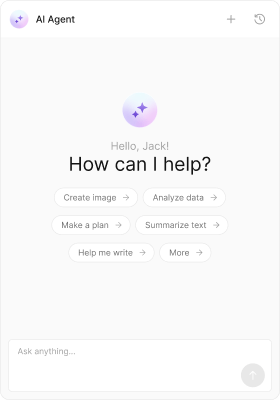
The AI plugin handles messages in theagentic category. It renders completed assistant responses (with markdown), tool call arguments and results (as formatted JSON), and a streaming bubble while the AI is generating. It is included by default — no installation or plugins configuration is required.
Message Types
| Type | Category | What it renders |
|---|---|---|
assistant | agentic | Completed AI response with markdown |
toolArguments | agentic | Tool call arguments as formatted JSON |
toolResults | agentic | Tool call results as formatted JSON |
run_started | custom | Streaming placeholder while the AI generates |
CometChatAIAssistantBubble, CometChatStreamMessageBubble, CometChatToolCallArgumentBubble, CometChatToolCallResultBubble. AI messages are system-generated and have no context menu. For the full chat experience, see AI Assistant Chat.
Conversation Preview
| Type | Preview text |
|---|---|
assistant | First 80 characters of the response (markdown stripped) |
toolArguments | ”Tool call” |
toolResults | ”Tool result” |