FieldValue
Package@cometchat/chat-uikit-react v7.0.x
Peer depsreact >=18, react-dom >=18, @cometchat/chat-sdk-javascript ^4.1.9, dompurify ^3.3.1
InitCometChatUIKit.init(UIKitSettings) — must resolve before login()
LoginCometChatUIKit.login("UID") — must resolve before rendering components
Orderinit()login() → render <CometChatProvider>. Breaking this order = blank screen
Auth KeyDev/testing only. Use Auth Token in production
SSRN/A — client-side SPA by default
CallingOptional. Install @cometchat/calls-sdk-javascript and call .setCallingEnabled(true) on UIKitSettingsBuilder
Other frameworksReact.js · Next.js · Astro
This guide walks you through adding CometChat to a React Router app. By the end you’ll have a working chat UI with route-based navigation.

Prerequisites

You need three things from the CometChat Dashboard:
CredentialWhere to find it
App IDDashboard → Your App → Credentials
Auth KeyDashboard → Your App → Credentials
RegionDashboard → Your App → Credentials (e.g. us, eu, in)
You also need Node.js 18+ and npm/yarn installed.
Auth Key is for development only. In production, generate Auth Tokens server-side via the REST API. Never ship Auth Keys in client code.

Step 1 — Create a React Project with React Router

npm create vite@latest my-app -- --template react-ts
cd my-app
npm install react-router-dom

Step 2 — Install the UI Kit

npm install @cometchat/chat-uikit-react @cometchat/chat-sdk-javascript dompurify
If you want voice/video calling, also install:
npm install @cometchat/calls-sdk-javascript

Step 3 — Initialize, Login, and Set Up Routes

Call CometChatUIKit.init() and CometChatUIKit.login() before rendering. Then wrap your chat route in CometChatProvider. For development, use one of the pre-created test UIDs: cometchat-uid-1 · cometchat-uid-2 · cometchat-uid-3 · cometchat-uid-4 · cometchat-uid-5
src/main.tsx
import ReactDOM from "react-dom/client";
import { BrowserRouter } from "react-router-dom";
import { CometChatUIKit, UIKitSettingsBuilder } from "@cometchat/chat-uikit-react";
import App from "./App";

const settings = new UIKitSettingsBuilder()
  .setAppId("YOUR_APP_ID")
  .setRegion("YOUR_REGION")
  .setAuthKey("YOUR_AUTH_KEY")
  .subscribePresenceForAllUsers()
  .build();

CometChatUIKit.init(settings).then(async () => {
  await CometChatUIKit.login("cometchat-uid-1");
  ReactDOM.createRoot(document.getElementById("root")!).render(
    <BrowserRouter>
      <App />
    </BrowserRouter>
  );
});
src/App.tsx
import { Routes, Route, Navigate } from "react-router-dom";
import ChatPage from "./pages/ChatPage";

function App() {
  return (
    <Routes>
      <Route path="/chat" element={<ChatPage />} />
      <Route path="*" element={<Navigate to="/chat" replace />} />
    </Routes>
  );
}

export default App;
src/pages/ChatPage.tsx
import { useState } from "react";
import { CometChat } from "@cometchat/chat-sdk-javascript";
import {
  CometChatProvider,
  CometChatConversations,
  CometChatMessageHeader,
  CometChatMessageList,
  CometChatMessageComposer,
} from "@cometchat/chat-uikit-react";

export default function ChatPage() {
  const [chatUser, setChatUser] = useState<CometChat.User | undefined>();
  const [chatGroup, setChatGroup] = useState<CometChat.Group | undefined>();

  const handleConversationClick = (conversation: CometChat.Conversation) => {
    const entity = conversation.getConversationWith();
    if (conversation.getConversationType() === "user") {
      setChatUser(entity as CometChat.User);
      setChatGroup(undefined);
    } else {
      setChatGroup(entity as CometChat.Group);
      setChatUser(undefined);
    }
  };

  return (
    <CometChatProvider>
      <div style={{ display: "flex", height: "100vh" }}>
        <div style={{ width: 360, borderRight: "1px solid #eee" }}>
          <CometChatConversations onItemClick={handleConversationClick} />
        </div>
        <div style={{ flex: 1, display: "flex", flexDirection: "column" }}>
          {(chatUser || chatGroup) && (
            <>
              <CometChatMessageHeader user={chatUser} group={chatGroup} />
              <CometChatMessageList user={chatUser} group={chatGroup} />
              <CometChatMessageComposer user={chatUser} group={chatGroup} />
            </>
          )}
        </div>
      </div>
    </CometChatProvider>
  );
}
Init and login complete before the app renders. CometChatProvider then supplies theme, locale, plugin registry, and event context. See the CometChatProvider guide for all props.
For production, use CometChatUIKit.loginWithAuthToken(token) instead of login(uid). Generate auth tokens server-side via the CometChat REST API. Never ship auth keys in client code.

Step 4 — Run

npm run dev
Open http://localhost:5173/chat. You should see the conversation list on the left. Click a conversation to open the message panel.

Choose a Chat Experience

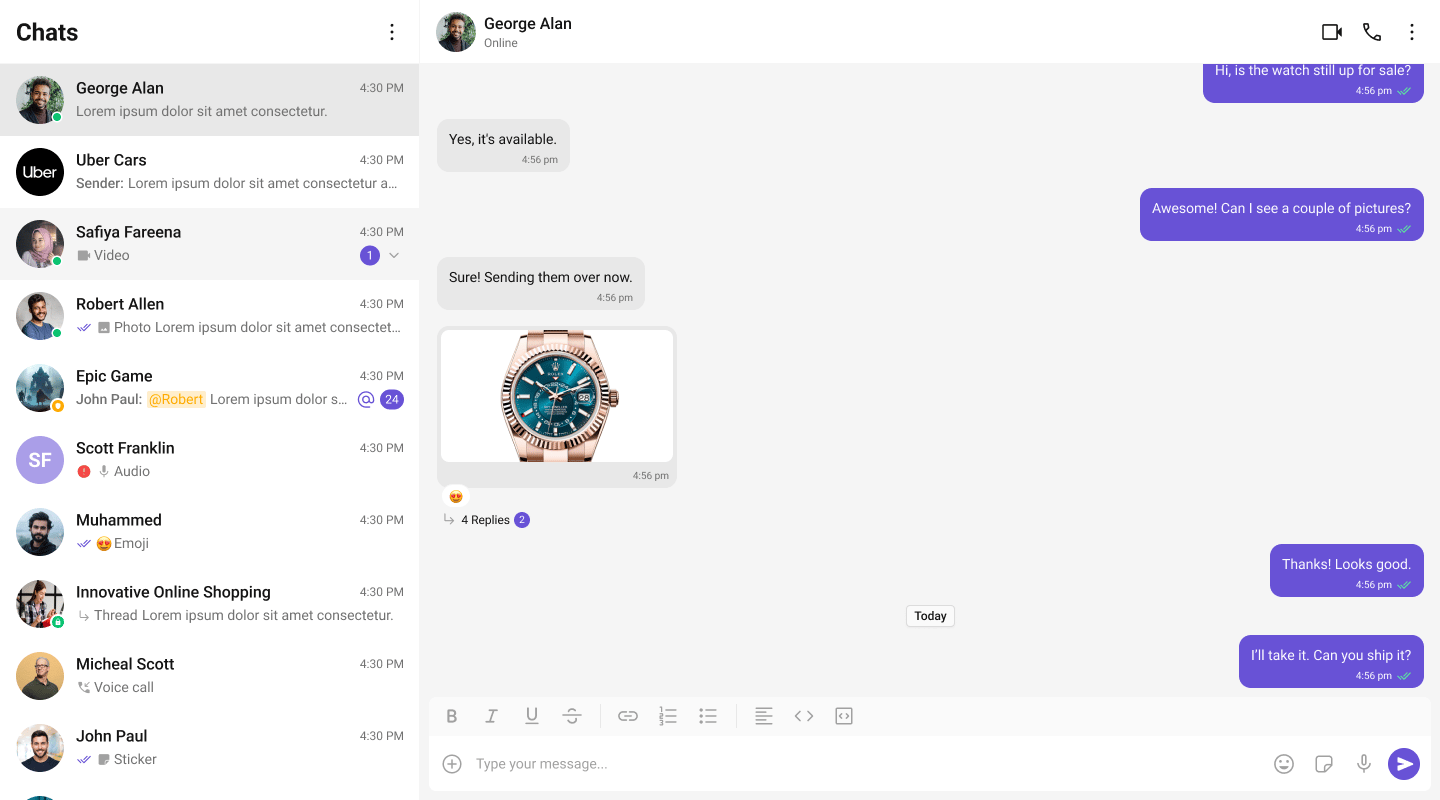
Conversation List + Message View

Two-panel layout — conversation list on the left, messages on the right.

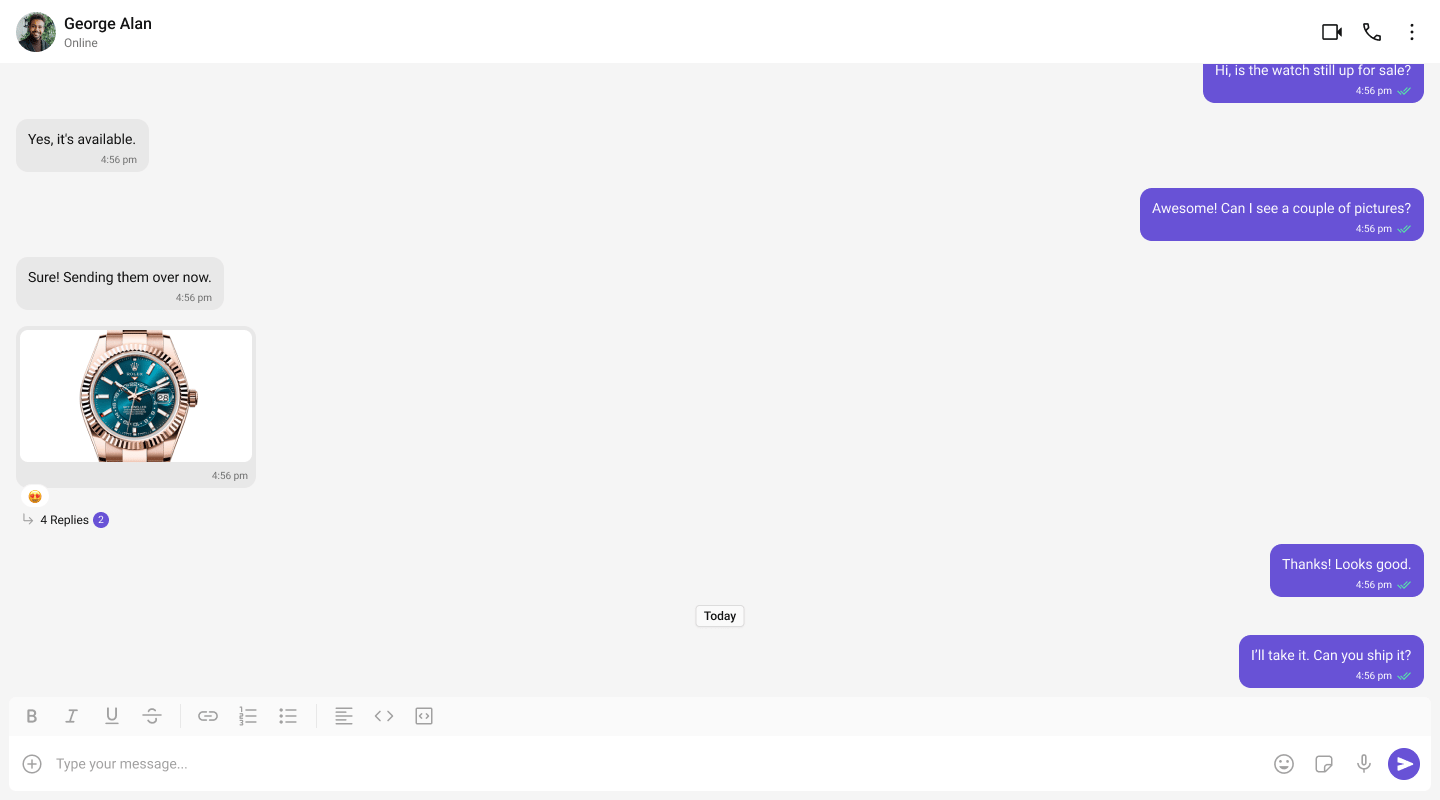
One-to-One / Group Chat

Single chat window — no sidebar. Good for support chat or embedded widgets.
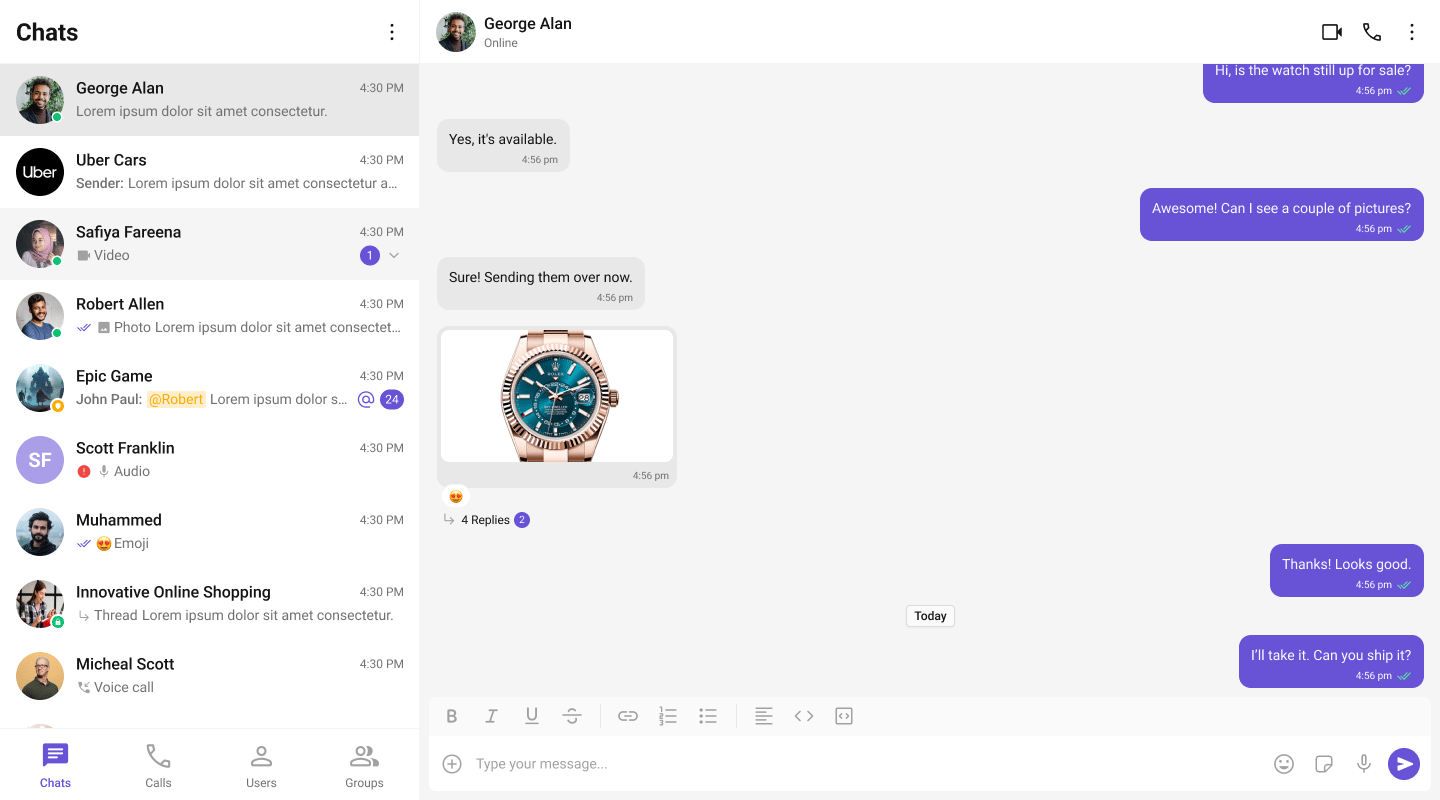
Tab-Based Chat

Tabbed navigation — Chat, Call Logs, Users, Settings in separate tabs.
Build Your Own Chat Experience

Need full control over the UI? Use individual components, customize themes, and wire up your own layouts.
  • Sample App — Working reference app to compare against
  • Components — All prebuilt UI elements with props and customization options
  • Core Features — Messaging, real-time updates, and other capabilities
  • Theming — Colors, fonts, dark mode, and custom styling
  • Build Your Own UI — Skip the UI Kit entirely and build on the raw SDK

Next Steps

Components Overview

Browse all prebuilt UI components

Theming

Customize colors, fonts, and styles

Plugins

Customize message rendering

Troubleshooting

Common issues and fixes